Chapter 1: Computer Network and Communication
How computers connect, talk, and share: the backbone of the digital world.
1 Introduction to Communication
Whenever you talk to a friend, write a letter, or send a message on a phone, communication is taking place. There must always be at least two parties: a sender and a receiver, and a way for the message to travel from one to the other.
Basic forms of communication
- Verbal communication: speaking, conversations.
- Non-verbal communication: gestures, facial expressions, body language.
- Written communication: letters, emails, books.
- Visual communication: pictures, diagrams, videos.
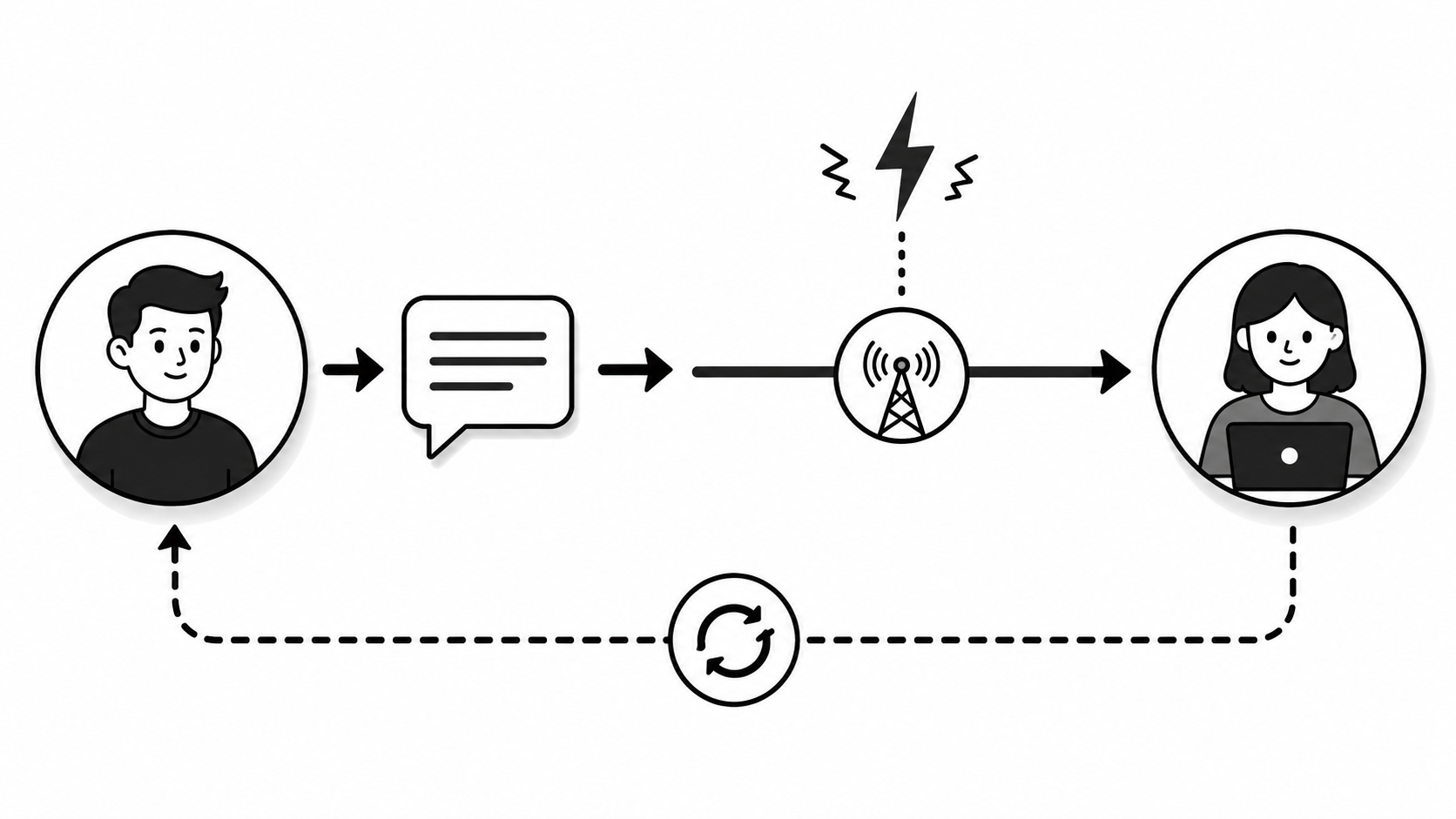
2 Telecommunication
The word "tele" means distant. So telecommunication literally means "communication at a distance". It allows people who are far apart to share voice, video, text, or data instantly.
Common examples
Telephone
Voice calls between two people over wires or wireless.
Television
Broadcasting of audio and video signals.
Radio
One-way broadcast of audio using radio waves.
Internet
Global telecommunication network used today.
3 Data Communication
Whenever you send a WhatsApp message, download a file, or watch a YouTube video, data communication is happening between your device and a remote computer.
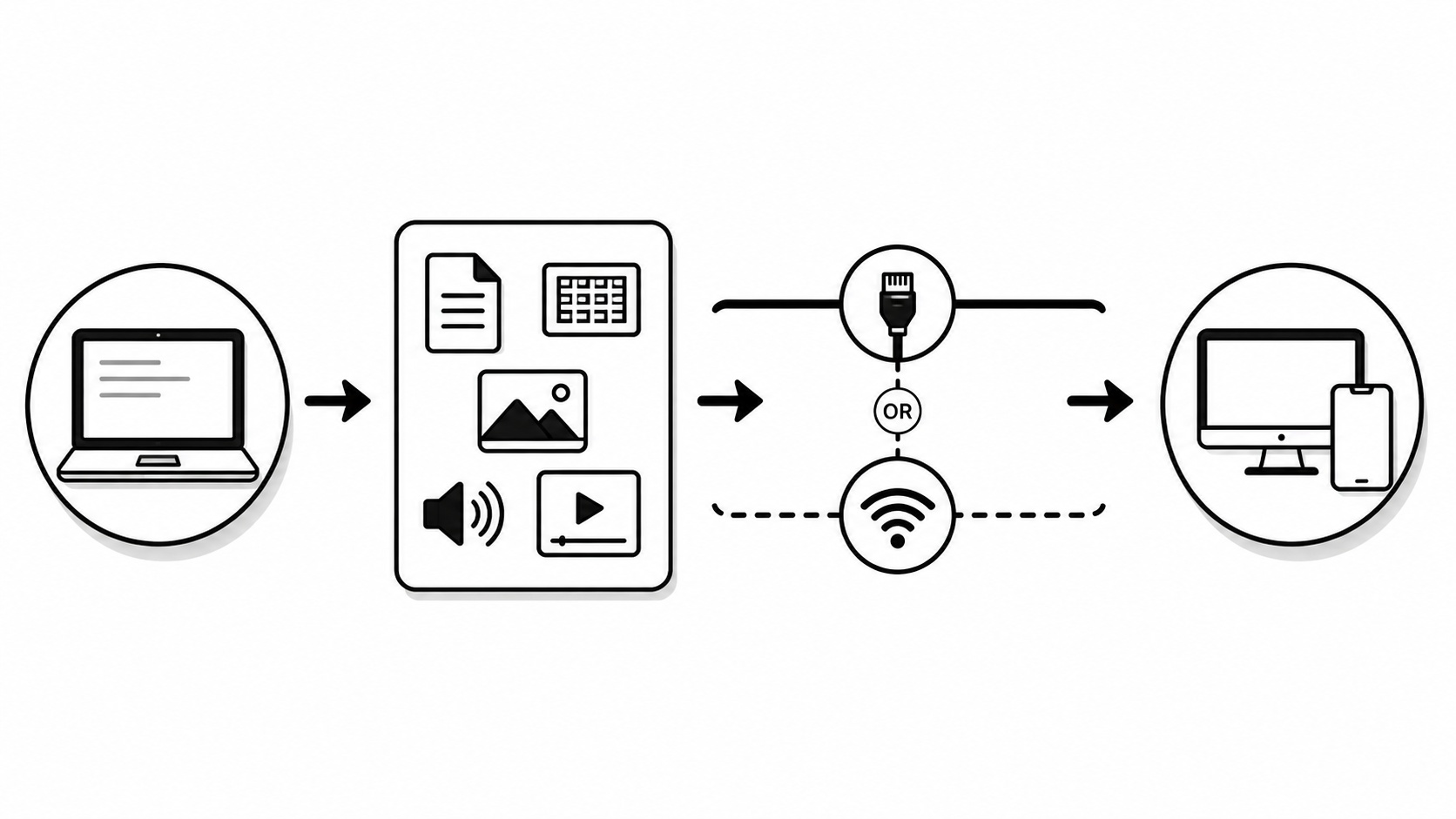
4 Elements of Data Communication
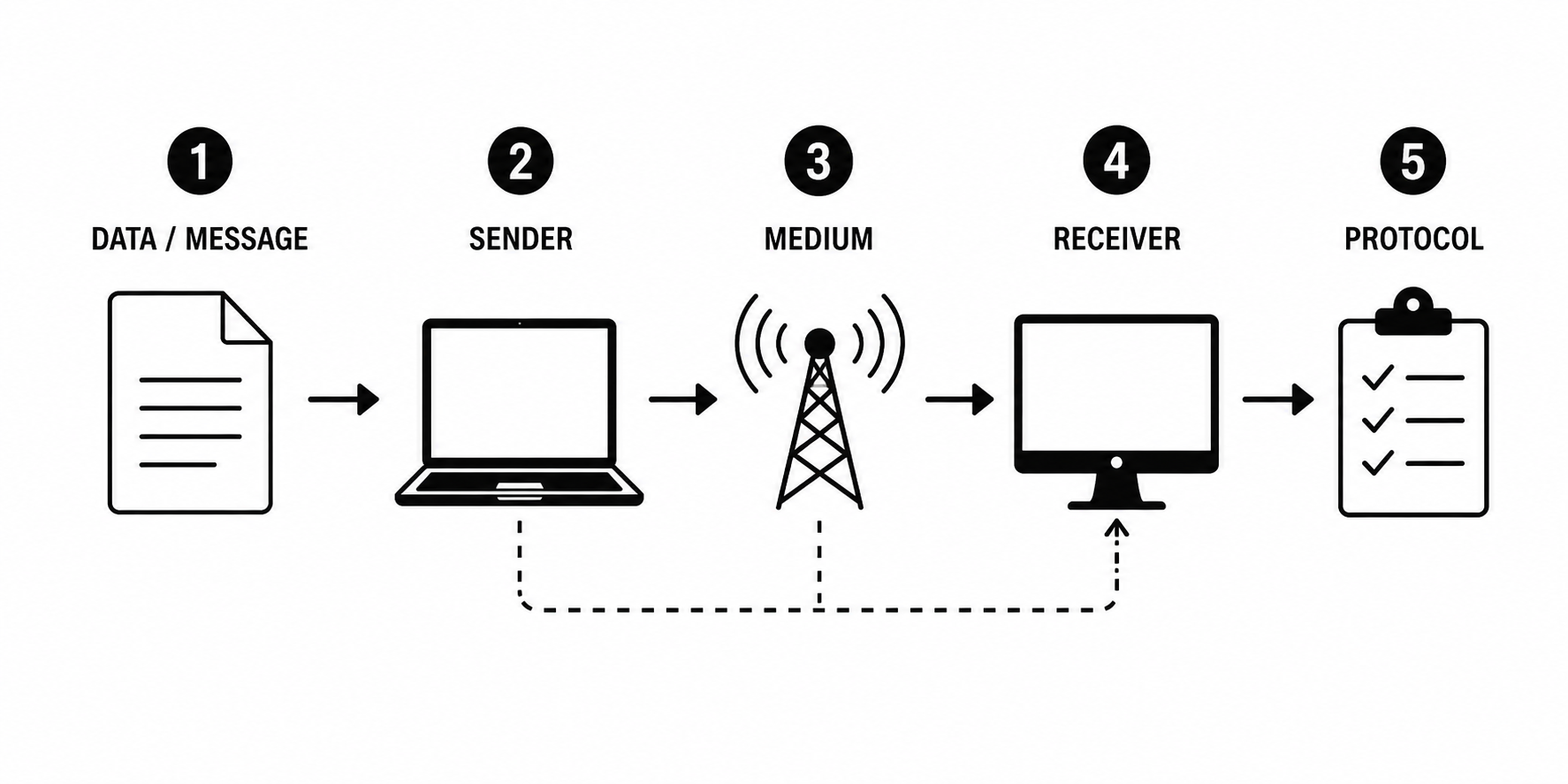
Data communication has five essential elements. Without any one of them, the communication cannot take place.
1. Data / Message
The actual information to be sent: text, numbers, image, audio, video.
2. Sender
The device that originates and sends the message (computer, phone, etc.).
3. Medium
The physical path through which the message travels (cable, air, fiber).
4. Receiver
The device that receives the message.
5. Protocol
A set of rules that govern how data is sent and received between devices.
5 Modes of Data Transmission
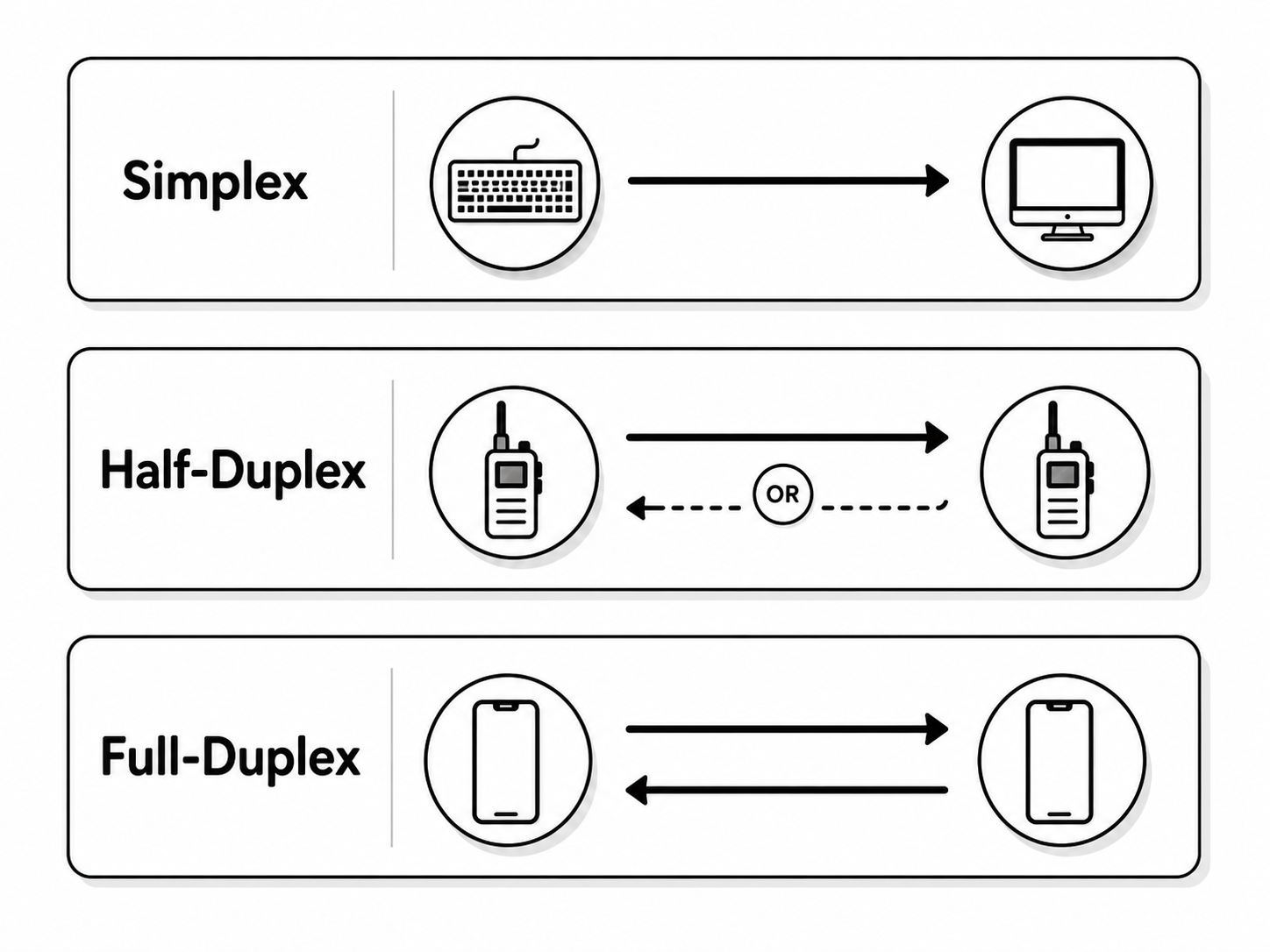
Based on the direction of data flow, transmission can be of three types:
1. Simplex
Data flows in only one direction. The sender can only send and the receiver can only receive.
Examples: Radio broadcast, television, keyboard to computer.
2. Half-Duplex
Data can flow in both directions, but only one direction at a time. When one side is sending, the other must wait.
Examples: Walkie-talkie, push-to-talk systems.
3. Full-Duplex
Data flows in both directions simultaneously. Both parties can send and receive at the same time.
Examples: Telephone call, video call, modern (full-duplex) Ethernet connections.
6 Broadband
The word "broadband" comes from "broad bandwidth", meaning a wide range of frequencies is used to carry a large amount of data quickly. Broadband can carry voice, video and data at the same time.
7 Types of Broadband
| Type | Description |
|---|---|
| DSL (Digital Subscriber Line) | Uses ordinary copper telephone lines to deliver high-speed internet. |
| ADSL (Asymmetric DSL) | A type of DSL where download speed is faster than upload speed. |
| Cable Broadband | Uses the same coaxial cable that provides cable TV service. |
| Fiber Optic Broadband | Uses thin glass strands to send data as pulses of light: the fastest and most reliable, and most common for new home connections today. |
| Satellite Broadband | Internet service delivered through communication satellites, useful in remote areas. |
| Fixed Wireless Broadband | Internet delivered to a fixed location via radio signals from a nearby tower (WiMAX is one example of this). |
| Mobile Broadband | Internet via cellular networks (3G/4G/5G) on mobile phones and dongles. |
8 Bandwidth
It is usually measured in bits per second (bps), Kbps (kilobits/second), Mbps (megabits/second), or Gbps (gigabits/second).
9 Throughput
Throughput is always less than or equal to bandwidth because of real-world factors such as network traffic, errors, signal loss, and protocol overhead.
10 Latency
Low latency means very little delay; high latency means a noticeable lag. Latency and bandwidth are different: you can have high bandwidth but still feel lag if latency is high.
ping command shows latency.
11 Upload Speed vs Download Speed
Many home connections are asymmetric: download speed is higher than upload speed, because users usually download more than they upload.
| Download (getting data) | Upload (sending data) |
|---|---|
| Watching YouTube / Netflix. | Posting a video or photo. |
| Opening a web page. | Sending an email attachment. |
| Installing an app. | Joining a video call (your camera feed). |
12 Mobile Network (1G → 5G)
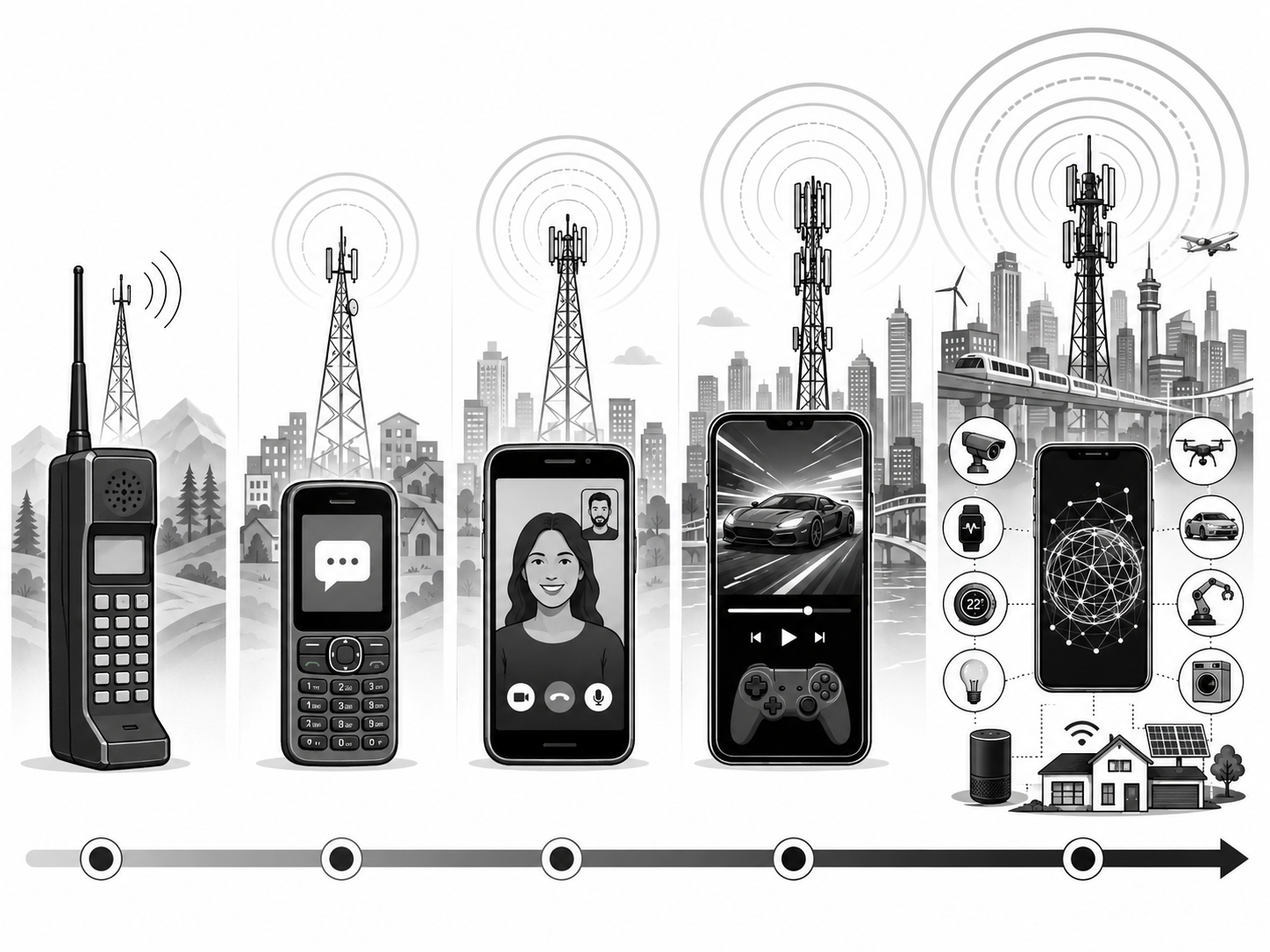
Mobile networks have evolved through several "generations" (G). Each generation brought faster speeds and new features.
| Generation | Year (approx.) | Main Feature |
|---|---|---|
| 1G | 1980s | Analog voice calls only. Poor quality, no data. |
| 2G | 1990s | Digital voice + SMS (MMS and basic data came with 2.5G). GSM/CDMA technology. |
| 3G | 2000s | Mobile internet, video calls, faster data. |
| 4G (LTE) | 2010s | High-speed internet, HD video streaming, gaming. |
| 5G | 2019 onward | Ultra-fast speed, very low latency, IoT, smart cities. |
13 Data Packets and Their Features
Features of Data Packets
- Each packet contains a piece of the actual data (called the payload).
- Each packet has a header with information like sender address, receiver address and sequence number.
- Packets can take different paths to reach the destination.
- At the destination, packets are reassembled in the correct order using their sequence numbers.
14 Packet Switching vs Circuit Switching
| Packet Switching | Circuit Switching |
|---|---|
| Data is split into packets. | Data flows over one continuous connection. |
| No single fixed path; packets share the network. | A dedicated path is reserved end-to-end. |
| Efficient: the line is shared by many users. | Line is busy even during silence. |
| Used by the Internet. | Used by the traditional telephone (PSTN) system. |
15 Frequency
1 Hz = 1 cycle per second. A wider range of frequencies (more bandwidth) can usually carry more data. Common units:
- kHz (kilohertz) = 1,000 Hz
- MHz (megahertz) = 1,000,000 Hz
- GHz (gigahertz) = 1,000,000,000 Hz
For example, Wi-Fi commonly uses the 2.4 GHz and 5 GHz frequency bands (and newer Wi-Fi also uses 6 GHz).
16 Communication Channel / Transmission Media
Without transmission media, data cannot move from one device to another. It can be a physical cable or open air carrying electromagnetic waves.
17 Types of Communication Media
Communication media is broadly classified into two main types:
1. Wired / Guided Media
Data travels through a physical cable. Examples: UTP, STP, Coaxial, Fiber Optic.
2. Wireless / Unguided Media
Data travels through open air using electromagnetic waves. Examples: Radio waves, Microwaves, Infrared, Wi-Fi, Bluetooth, Satellite.
18 Wired (Guided) Media
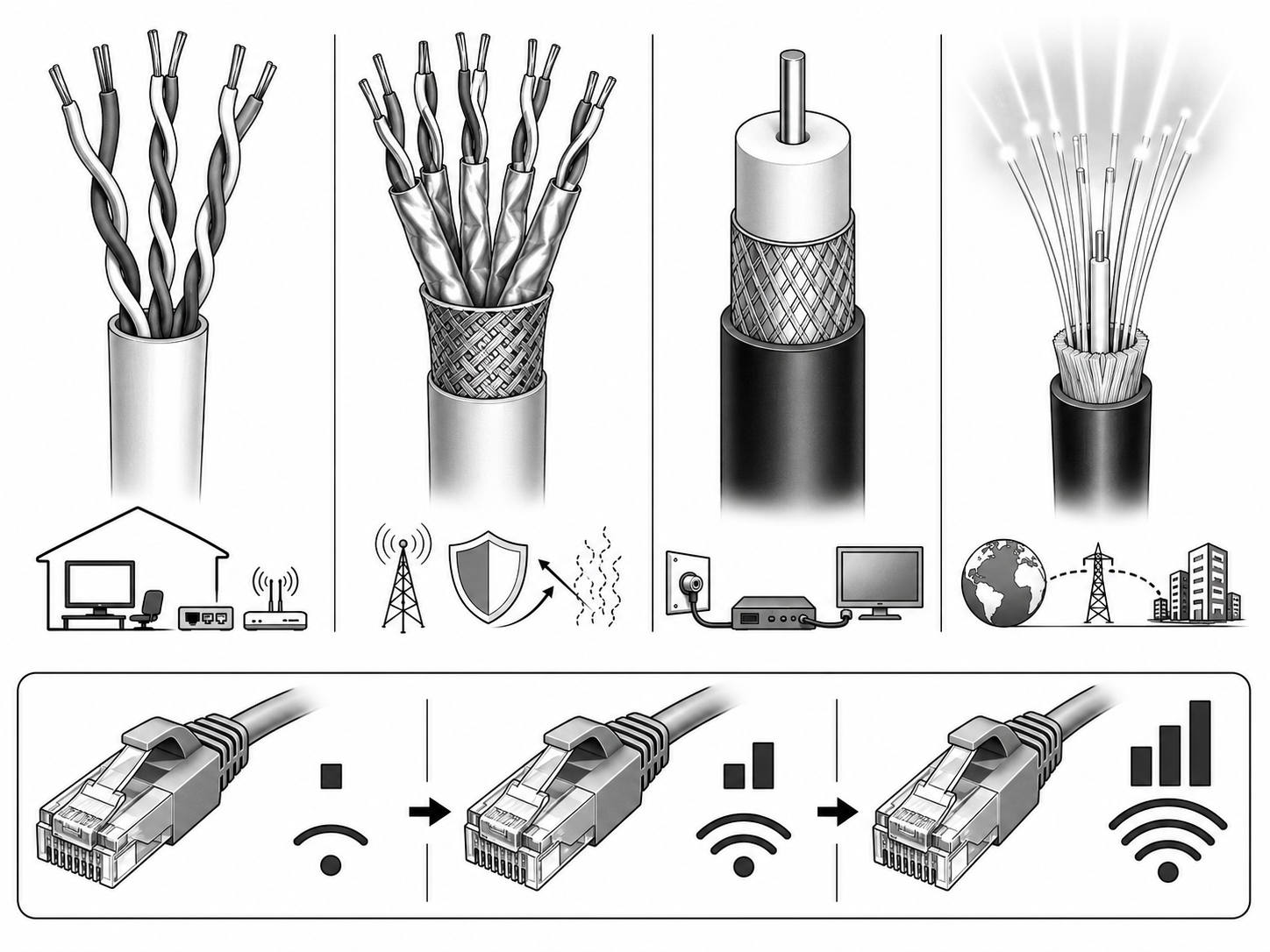
The main types of wired cable are:
| Cable Type | Description |
|---|---|
| UTP (Unshielded Twisted Pair) | Pairs of copper wires twisted together without shielding. Cheap, easy to install, common in LANs. |
| STP (Shielded Twisted Pair) | Twisted pairs covered with metal shielding. Better resistance to electrical noise. |
| Coaxial Cable | A single copper conductor surrounded by insulation and a metal shield. Used for cable TV and older networks. |
| Fiber Optic Cable | Made of thin strands of glass or plastic that carry data as light pulses. Extremely fast, long distance, immune to electrical interference. |
Twisted-pair cables also come in categories (standards) based on their speed and quality. A category is not a separate cable type: a CAT cable can be built as UTP or STP.
| Category | Description |
|---|---|
| CAT5e (Category 5e) | Supports up to 1 Gbps. Common in older home and office networks. |
| CAT6 (Category 6) | Supports up to 1 Gbps (and 10 Gbps over short distances). Widely used today. |
| CAT6A (Category 6 Augmented) | Supports 10 Gbps over longer distances with better noise protection. |
19 Wireless (Unguided) Media
Wireless media carry signals through open air as electromagnetic waves. The main kinds are radio waves, microwaves and infrared; technologies like Wi-Fi, Bluetooth and satellite are built on top of these.
Radio Waves
Travel long distances in all directions and pass through walls. Used by FM radio, TV broadcast, etc.
Microwaves
High-frequency waves that travel in a straight line between two antennas. Used by Mobile phones, WI-FI, radar etc.
Infrared
Short-range waves that cannot pass through walls. Used by TV remotes and some older device links.
Wi-Fi
Wireless networking technology that uses radio waves (2.4/5/6 GHz) to connect devices within a limited area.
Bluetooth
Short-range radio technology (about 10 m) for connecting devices like headphones, keyboards and mouse.
RFID
Radio Frequency Identification: uses radio waves to read tags on objects. Used in tracking, ID cards and shopping.
Communication Satellite
Satellites in space receive signals from Earth and re-transmit them to other locations. Used for TV, GPS and internet.
20 Difference between Guided and Unguided Media
| Guided (Wired) Media | Unguided (Wireless) Media |
|---|---|
| Uses physical cables. | Uses open air / electromagnetic waves. |
| Signals travel along a defined path. | Signals travel through open space. |
| More secure and reliable. | Less secure, more prone to interference. |
| Limited mobility. | High mobility: move freely. |
| Examples: UTP, STP, Coaxial, Fiber Optic. | Examples: Radio waves, Microwaves, Infrared, Wi-Fi, Satellite. |
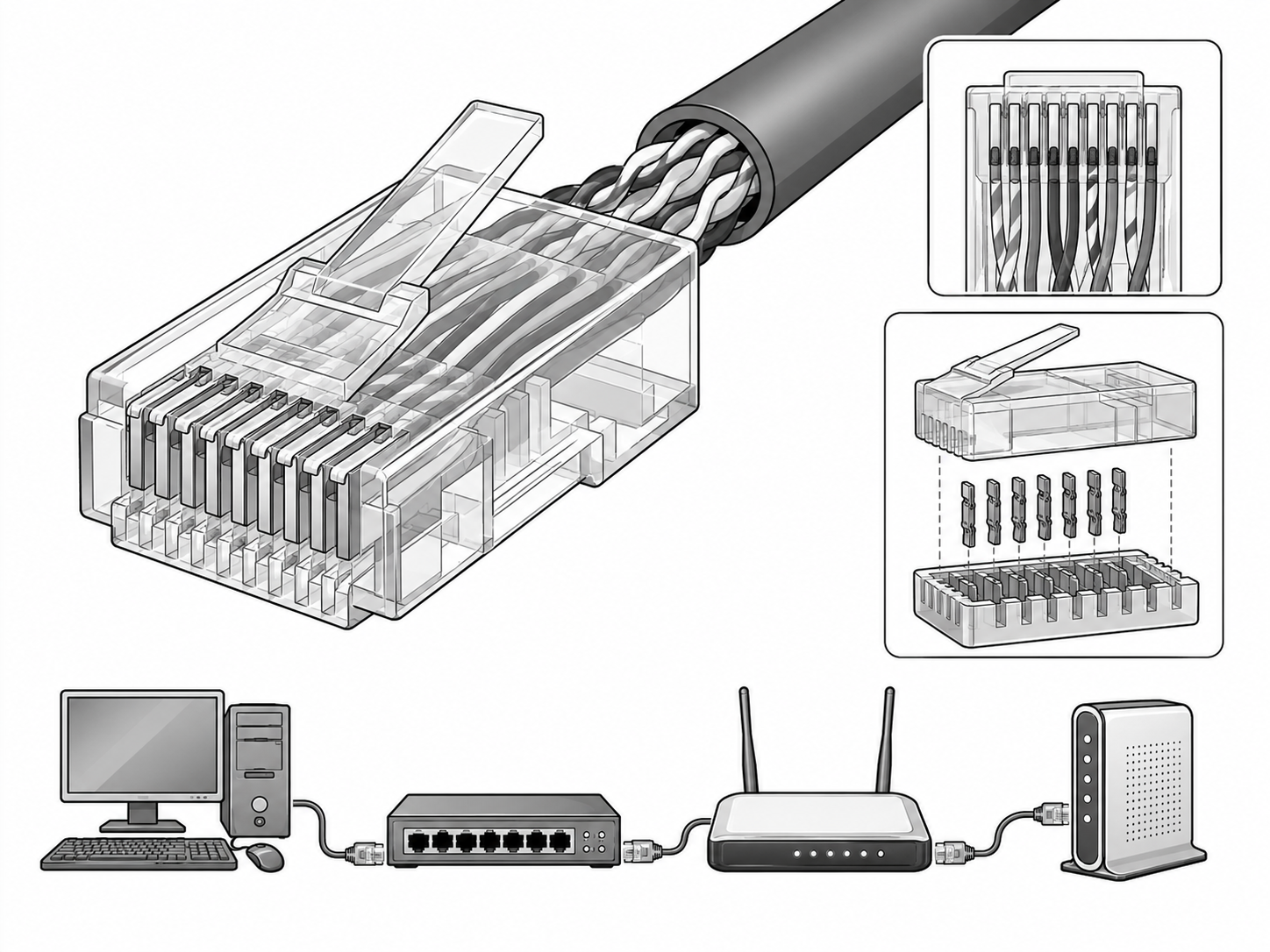
21 Connector: RJ-45 (8P8C)
It looks similar to a telephone connector (RJ-11) but is wider because it uses 8 positions instead of 4 or 6. These connectors are used to plug Ethernet cables into computers, switches, routers and modems.
22 Media Converter
Features
- Connects two different types of media into one network.
- Extends the distance of a network beyond the limit of copper cable (typically 100 m).
- Operates at the Physical layer of the OSI model.
- Available in different speeds (10/100/1000 Mbps).
- Compact, low-cost and easy to install.
23 Networking Devices
Repeater
Receives a weak signal, regenerates (cleans and rebuilds) it, and retransmits it. Used to extend the length of a network.
Hub
A simple device that connects multiple computers. It broadcasts incoming data to all connected devices. Now outdated.
Switch
An intelligent device that sends data only to the specific destination device using MAC addresses.
Bridge
Connects two or more LAN segments and filters traffic based on MAC addresses.
Router
Connects different networks together and forwards data packets using IP addresses. Found in every home internet setup.
Modem
Modulator–Demodulator: converts digital signals from your computer into a form that travels over the ISP's line, and back again. It connects your home to the Internet.
Wireless Access Point (WAP)
Lets Wi-Fi devices join a wired network by providing a wireless signal. Home routers usually include a built-in access point.
NIC (Network Interface Card)
The hardware inside a device that connects it to a network (wired or wireless). Every NIC has a unique MAC address.
24 Difference between Switch and Hub
| Hub | Switch |
|---|---|
| Broadcasts data to all ports. | Sends data only to the specific destination port. |
| Works at Physical layer (Layer 1). | Works at Data Link layer (Layer 2). |
| Slower and less secure. | Faster and more secure. |
| Cannot identify devices. | Identifies devices using MAC addresses. |
| Cheaper but outdated. | More expensive, widely used today. |
25 Difference between Router and Switch
| Switch | Router |
|---|---|
| Works within a single network (LAN). | Connects two or more different networks. |
| Uses MAC addresses. | Uses IP addresses. |
| Works at Data Link layer (Layer 2). | Works at Network layer (Layer 3). |
| Cannot connect to the Internet directly. | Connects local network to the Internet. |
| Forwards frames. | Forwards packets. |
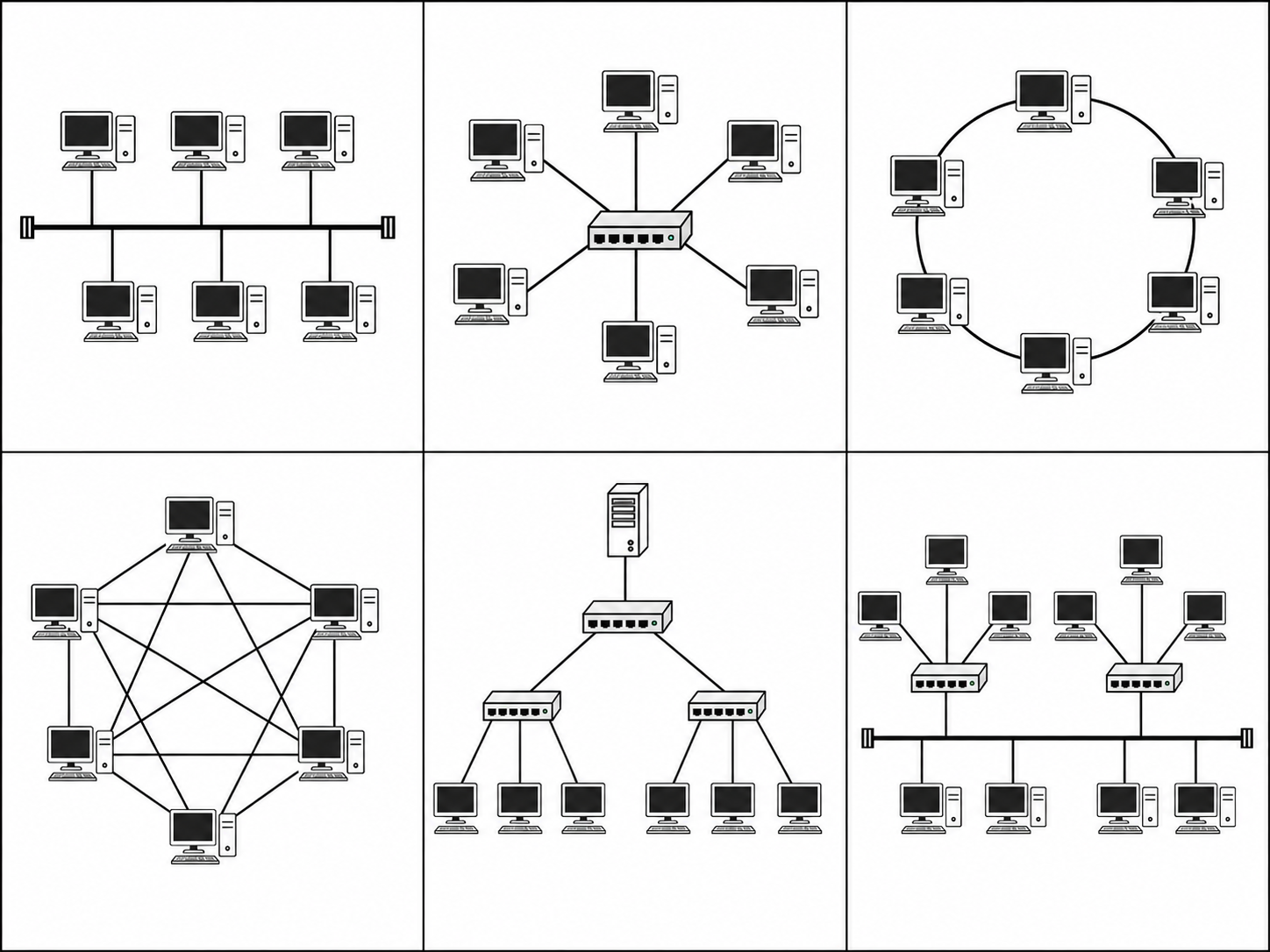
26 Network Topologies
1. Bus / Linear Topology
All devices are connected to a single central cable called the backbone (bus). Cheap and easy to install, but if the main cable fails, the whole network fails.
2. Star Topology
All devices are connected to a central hub or switch. If one cable fails, only that device is affected. Most widely used in offices and schools today.
3. Ring Topology
Each device is connected to two others, forming a closed ring. Data may travel in one direction (unidirectional) or both directions (bidirectional, as in dual-ring networks). A break in the ring can affect the whole network.
4. Mesh Topology
Every device is connected to many (or all) other devices, giving multiple paths for data. Very reliable: if one link fails, data uses another path. Used in the Internet backbone and modern Wi-Fi mesh systems. Drawback: needs a lot of cabling/links.
5. Tree (Hierarchical) Topology
Devices are arranged like a tree, with a root node and branches of star-connected groups. Common in large organisations and school networks because it is easy to expand and manage.
6. Hybrid Topology
A combination of two or more different topologies (e.g., star + bus). Flexible and scalable but more complex to design.
27 Introduction to Computer Network
Computer networks make it possible to share files, printers, internet connections and applications. Networks can be small (between two computers in a room) or huge (millions of computers across the world, like the Internet).
28 Services provided by Computer Network
Message Services
Send and receive messages: email, chat, instant messaging.
File Services
Share, transfer and store files between users.
Print Services
Multiple users can share a single printer over the network.
Application Services
Run shared applications (like accounting software) on the network.
Database Services
Centralised database accessed by many users.
Network Management Services
Monitoring, configuration and maintenance of the network.
Security Services
Firewalls, authentication, encryption to protect data.
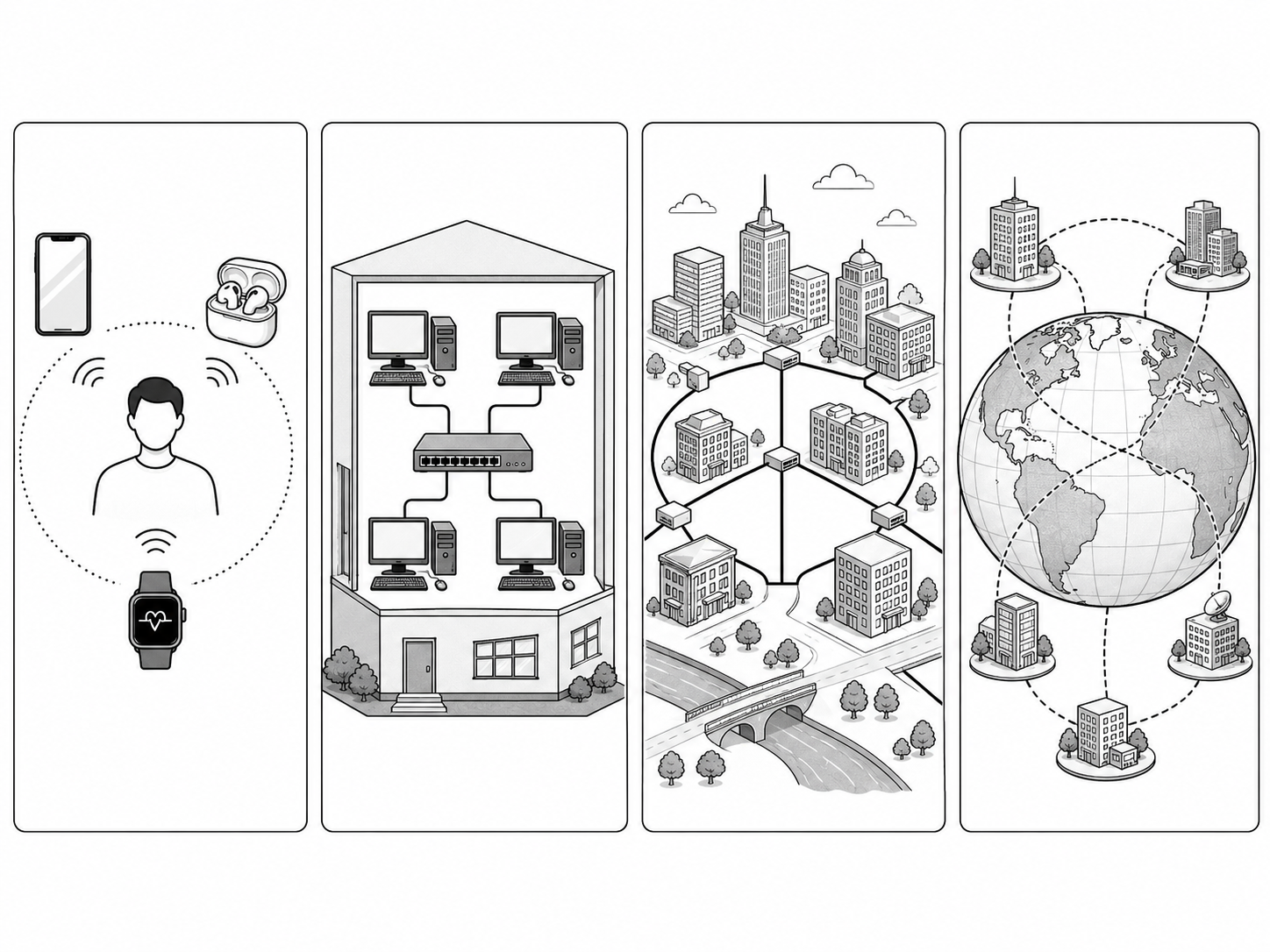
29 Types of Computer Network
| Type | Coverage | Example |
|---|---|---|
| PAN (Personal Area Network) | A few meters (around a person) | Bluetooth between phone & headphones. |
| LAN (Local Area Network) | Within a building / campus | School computer lab, office network. |
| MAN (Metropolitan Area Network) | Within a city | City-wide cable TV / ISP network. |
| WAN (Wide Area Network) | Country / world-wide | A bank's offices across the country connected together. |
30 Terms used in Computer Network
Client
A computer or device that requests services or resources from a server.
Server
A powerful computer that provides services, files or resources to clients.
Node
Any device (computer, printer, phone, etc.) connected to a network.
Workstation
A high-performance computer used by an end user, usually connected to a network.
NIC
Network Interface Card: the hardware that connects a device to a network and carries its unique MAC address.
31 Advantages and Limitations of Computer Network
Advantages
- Resource sharing: printers, scanners, internet, files.
- Fast and easy communication (email, chat, video call).
- Centralised data storage and easy backup.
- Saves money by sharing hardware and software.
- Centralised software management and updates.
Limitations
- Installation cost can be high for large networks.
- Security risks: virus, hacking, data theft.
- If the server fails, many users are affected.
- Needs skilled technicians to maintain.
- Heavy traffic can slow down the network.
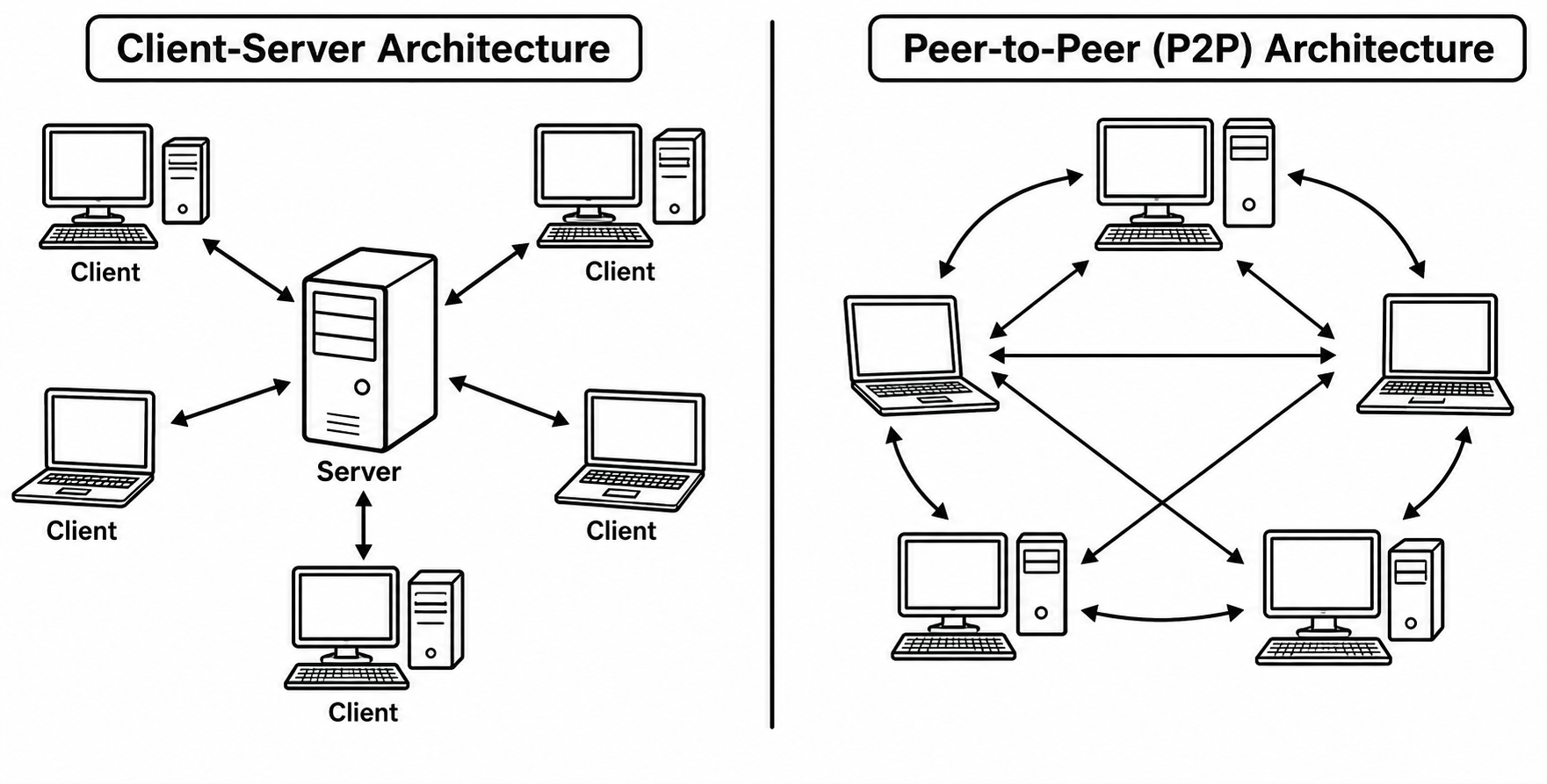
32 Network Architecture
1. Client-Server Architecture
One powerful computer (the server) provides resources, files or services to many other computers (clients). All requests go through the server.
2. Peer-to-Peer (P2P) Architecture
All computers in the network are equal; there is no dedicated server. Each computer can act as both client and server, sharing files directly with others.
33 Difference: Client-Server vs Peer-to-Peer
| Client-Server | Peer-to-Peer |
|---|---|
| Has a dedicated server. | No dedicated server: all peers are equal. |
| More secure and centrally managed. | Less secure, hard to manage. |
| Expensive (needs server hardware). | Cheaper, easy to set up. |
| Best for large networks. | Best for small networks (home, small office). |
| If server fails, the whole network is affected. | Failure of one peer affects only that user. |
34 Communication Protocols
| Protocol | Full Form | Purpose |
|---|---|---|
| TCP/IP | Transmission Control Protocol / Internet Protocol | The fundamental protocol suite of the Internet. TCP provides reliable data transport, while IP handles addressing and routing. |
| HTTP | Hyper Text Transfer Protocol | Used to transfer web pages between web servers and browsers. |
| HTTPS | Hyper Text Transfer Protocol Secure | The secure, encrypted version of HTTP. Protects data using SSL/TLS, shown by the padlock in the browser. |
| FTP | File Transfer Protocol | Used to transfer files between computers over a network. |
| TFTP | Trivial File Transfer Protocol | A simple, lightweight file transfer protocol. |
| SMTP | Simple Mail Transfer Protocol | Used to send email from a client to a mail server, and also between mail servers. |
| POP3 | Post Office Protocol version 3 | Downloads email from a mail server to a local device (usually then removes it from the server). |
| IMAP | Internet Message Access Protocol | Accesses and manages email kept on the mail server (good for using many devices). |
| DNS | Domain Name System | Translates easy-to-remember domain names (like google.com) into IP addresses. |
| DHCP | Dynamic Host Configuration Protocol | Automatically assigns IP addresses and network settings to devices when they join a network. |
| PPP | Point-to-Point Protocol | Used to establish a direct connection between two nodes. |
DNS (Domain Name System)
DNS works like the Internet's phonebook. When you type www.google.com, DNS finds the matching IP address so your device can connect. Example: a domain name maps to an address such as 142.250.x.x.
DHCP (Dynamic Host Configuration Protocol)
DHCP automatically gives a device its IP address, subnet mask, gateway and DNS settings when it connects. Example: your phone gets an IP address automatically when it joins your home Wi-Fi, without you typing anything.
35 MAC Address
It is a 48-bit address written as six pairs of hexadecimal digits, for example 00:1A:2B:3C:4D:5E. It is used to identify devices within a local network.
| MAC Address | IP Address |
|---|---|
| Physical (hardware) address. | Logical (software) address. |
| Fixed by the manufacturer. | Assigned by the network/ISP and can change. |
| Works within a local network (Layer 2). | Works across networks / the Internet (Layer 3). |
36 Concept of IP Address
Just like your home has a unique postal address so the postman can deliver letters, every computer has a unique IP address so data packets can find their way to it.
37 IPv4 and IPv6
IPv4 (Internet Protocol version 4)
The original and still most widely used IP version. It uses a 32-bit address written as four decimal numbers separated by dots (each from 0 to 255).
Example: 192.168.1.1
IPv4 provides about 4.3 billion unique addresses.
IPv6 (Internet Protocol version 6)
The newer version that uses a 128-bit address written as eight groups of four hexadecimal digits separated by colons.
Example: 2001:0db8:85a3:0000:0000:8a2e:0370:7334
IPv6 provides an extremely large number of addresses: approximately 340 undecillion (3.4 × 10³⁸).
38 Difference between IPv4 and IPv6
| IPv4 | IPv6 |
|---|---|
| 32-bit address. | 128-bit address. |
| Written in decimal, separated by dots. | Written in hexadecimal, separated by colons. |
| About 4.3 billion addresses. | ~3.4 × 10³⁸ addresses. |
| Supports security protocols such as IPsec. | Also supports IPsec and modern networking features, but security is not automatic. |
| Example: 192.168.1.1 | Example: 2001:0db8:85a3::8a2e:0370:7334 |
| Uses ARP for address resolution. | Uses NDP (Neighbor Discovery Protocol) for address resolution. |
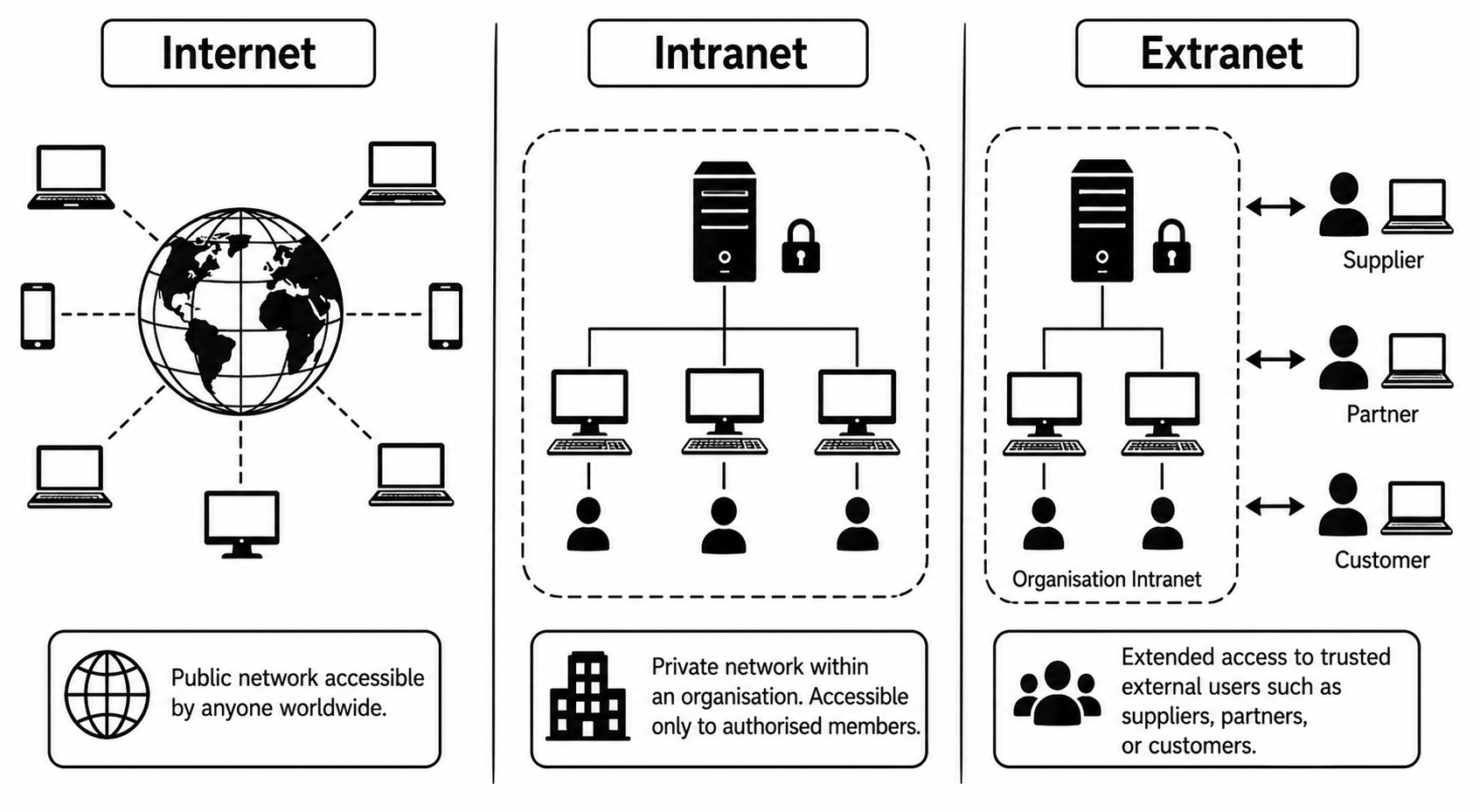
39 Internet, Intranet and Extranet
Internet
A global network of interconnected networks ("network of networks") that links millions of computers worldwide. It is public and can be accessed by anyone with an internet connection.
Intranet
A private network inside an organisation (school, company) that uses internet technologies. It is accessible only to authorised members.
Extranet
An extension of an intranet that allows limited access to outside users like suppliers, partners or customers, usually through a secure login.
40 Difference: Internet vs Intranet vs Extranet
| Internet | Intranet | Extranet |
|---|---|---|
| Public network. | Private network within an organisation. | Private network shared with selected outsiders. |
| Anyone can access. | Only employees / members. | Authorised partners / clients. |
| No single owner. | Owned by one organisation. | Owned by one organisation but shared. |
| Unlimited users. | Limited to organisation users. | Limited to organisation + chosen outsiders. |
| Less secure. | More secure. | Secure (uses VPN, login). |
📝 Exercises & Quiz
Test what you've learned! Click Show Answer to check yourself.
📚 Short Terms / Glossary
🔤 Full Forms (Click "Reveal" to check)
✅ Choose the Correct Answer (MCQ)
✍️ Short Answer Questions
🛠️ Practical Ideas (Try in the classroom or lab)
- Connect two computers in a LAN: Use UTP cables with RJ-45 (8P8C) connectors and a switch. Configure IP addresses (e.g., 192.168.1.10 and 192.168.1.11) and share a folder between them.
- Crimp an RJ-45 connector: Practice making your own UTP cable using the T568B colour code (White-Orange, Orange, White-Green, Blue, White-Blue, Green, White-Brown, Brown).
- Find your IP and MAC address: On Windows type
ipconfig /all. On macOS/Linux useip addr(modern) or the olderifconfig. Identify your IPv4, MAC address and default gateway. - Ping test (latency): Use the
pingcommand, e.g.,ping google.com. Observe the latency (time in ms) and any packet loss. - DNS lookup: Run
nslookup google.com(ordig google.comon Linux) and see the IP address a domain name maps to. - Identify network devices: Visit your school's computer lab/server room and identify a switch, router, modem and wireless access point.
- Map your home network: Draw a diagram showing your modem, router, access point and devices (phones, laptops, TV) and how they connect.
- Speed test: Run an online speed test and note your download speed, upload speed and ping (latency). Compare with your internet plan.